
Two years ago, a backup script running via cron at 2 a.m. became my downfall. The client was using a laptop as a "server" — yes, I know — and the laptop got closed every evening. The cron job started dutifully, but the machine was asleep. Point. Nothing happened at 2 a.m. because the laptop was suspended. And since cron has no memory, it stayed that way: the backup didn't run for weeks, and nobody noticed, because the logs vanished into a MAILTO file nobody read. Since then, I use systemd timers for scheduled jobs — and this article explains why.
systemd timers have existed since 2014 (systemd 213), and they can do almost everything cron can — but with the advantages of the systemd ecosystem: clean logging through journald, real dependencies, environment files, and above all Persistent=true, which catches up missed jobs. This article shows the migration using my own timer collection: backups, updates, log rotation, and password rotation.
The basic principle: timer and service are two units
The most important difference from cron is architectural: a cron job is one line in a config file. A systemd timer is a pair of units — a .timer file defining the schedule and a .service file describing the job. The timer starts the service; the service does the work.
A minimal example, a daily backup at 2 a.m.:
# /etc/systemd/system/backup.timer
[Unit]
Description=Daily backup

[Timer]
OnCalendar=*-*-* 02:00:00
Persistent=true
RandomDelaySec=15m

[Install]
WantedBy=timers.target
# /etc/systemd/system/backup.service
[Unit]
Description=Runs the backup
[Service]
Type=oneshot
ExecStart=/usr/local/bin/backup.sh
EnvironmentFile=/etc/backup.envEnable it all with:
sudo systemctl daemon-reload
sudo systemctl enable --now backup.timer
systemctl list-timers backup.timer
You notice why this separation is good when debugging: systemctl status backup.service shows you the last run, journalctl -u backup.service -e the complete logs — without configuring MAILTO anywhere. The timer is just the alarm clock; the service is what gets woken up.
Persistent=true: the laptop trap is history
The feature that would have saved me back then is called Persistent=true. It means: if the machine was off at the scheduled time (or suspended), the job is caught up after the next start. The timer essentially remembers the missed appointment and runs it as soon as the machine is back.
The cron-world alternative would have been anacron — a tool built exactly for that, but it means a second piece of software, a second config, a second source of failure. With systemd you get that behavior with one line in the timer file.
Since the migration, the backup on my "laptop server" runs reliably: the machine gets closed in the evening, booted the next morning, and within minutes of boot the missed backup starts. The user briefly hears the disk, then it's quiet. For desktops and laptops with irregular uptime, Persistent=true is the difference between "backup runs" and "backup is supposed to run".
RandomDelaySec: against the 3 a.m. load spike
If you run 50 or 100 servers and run updates on all of them at 3 a.m., you know the phenomenon: mirror servers are saturated, the line is full, and every machine competes at the same time. The classic 0 3 * * * in cron is an invitation to a synchronized load spike.
systemd solves this with RandomDelaySec=15m (or RandomizedDelaySec= in newer versions). The timer waits a random time between 0 and 15 minutes after the scheduled time before starting the service. With 100 servers, that spreads the load over a quarter-hour window — the mirror servers breathe a sigh of relief. With cron, you'd have to maintain 100 different cron lines with manually staggered minutes for that. Yes, I actually did that back then, with a script generating a random minute per host. The systemd solution is one line.
OnCalendar: time expressions you can read
The cron syntax 0 3 * * 1 means "Monday 3 a.m." — if you know it. systemd's OnCalendar syntax reads like a sentence: Mon..Fri 03:00:00, *-*-* 02:00:00, Sun 05:00. There are also relative timeframes for things cron could never do:
- OnUnitActiveSec=1d — one day after the last run, not by calendar time. Perfect for maintenance jobs that should run at an interval, no matter when the last run was.
- OnBootSec=10min — ten minutes after boot. For jobs that should run after every start.
- OnCalendar=*-*-* 02:00 — daily at 2 a.m. The wildcards allow "every day", "every month", "every weekday" in readable form.
And if you're unsure whether your time expression is right, there's a built-in preview:
systemd-analyze calendar "Mon..Fri 03:00:00"
# → Normalized form: Mon..Fri 03:00:00
# → Next elapse: Mon 2026-10-05 03:00:00 CEST
# → (in UTC) Mon 2026-10-05 01:00:00 UTC
That's the moment you realize how much better the world could be: with cron there's no preview — you write 0 3 * * 1 and hope.
Logging: journald instead of MAILTO ruins
The second big win is logging. Cron sends a job's output either into the void or to a MAILTO address — and nobody reads mails from four years ago. systemd captures stdout and stderr of every service in journald:
# See the last run
journalctl -u backup.service -e

# All errors of the last week
journalctl -u backup.service --since "1 week ago" -p err

# Exit codes at a glance
systemctl status backup.service
For me that's the decisive difference in daily life: I don't have to configure anything to see whether a job ran and what it did. systemctl status backup.service tells me in one second: active (exited), ran 22 hours ago, exit code 0. And when something goes wrong, the error message is in the journal — not in a mail that landed in spam.
Dependencies and environment: jobs that wait for each other
In the cron world, jobs run isolated and in parallel. If your backup export should only run after the database dump, you have to wait inside the script or gamble on timing. systemd has real dependencies:
# backup.service
[Unit]
Description=Backup after the DB dump
After=mysqldump.service
Requires=mysqldump.service

[Service]
Type=oneshot
ExecStart=/usr/local/bin/backup.sh
That guarantees the order: mysqldump.service runs first, backup.service after — and if the dump fails, the backup doesn't start at all. In cron you'd have to rebuild that in a single monster script with && chaining or exit-code checks.
Then there's EnvironmentFile=: the job's variables live cleanly in their own file with chmod 600 — no more passwords in the cron line that anyone can read with ps. A weekly timer that rotates database passwords pulls the new values from the environment file and generates the next generation with the bitcalc Password Generator — 32 characters, all classes, written straight into the file.
The comparison: cron vs. systemd timers in one table
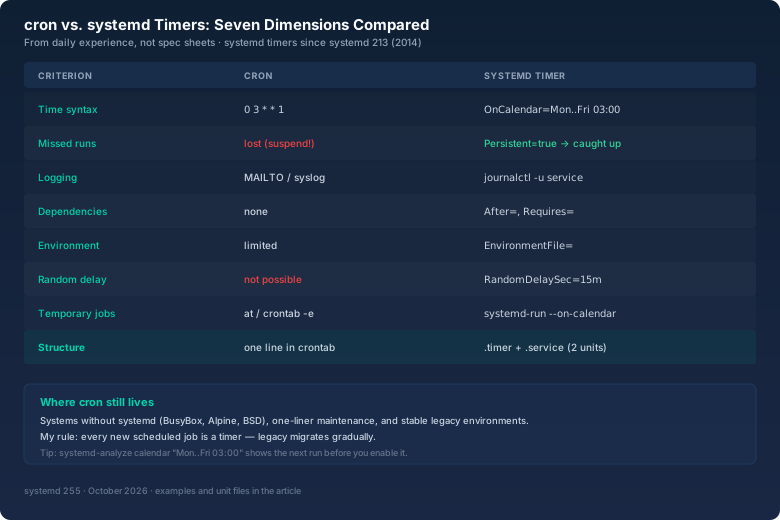
The table shows the seven dimensions in which systemd timers clearly win — and the honest answer to where cron still lives: on systems without systemd (BSD, BusyBox containers, Alpine), in legacy environments nobody wants to touch, and for the few cases where a single cron line is faster than two unit files. For anything more than "one command once a day", timers are the better choice.
The off-peak timeline: my nightly routine
To show you how it all looks in practice, here's my nightly timer plan on the home server:
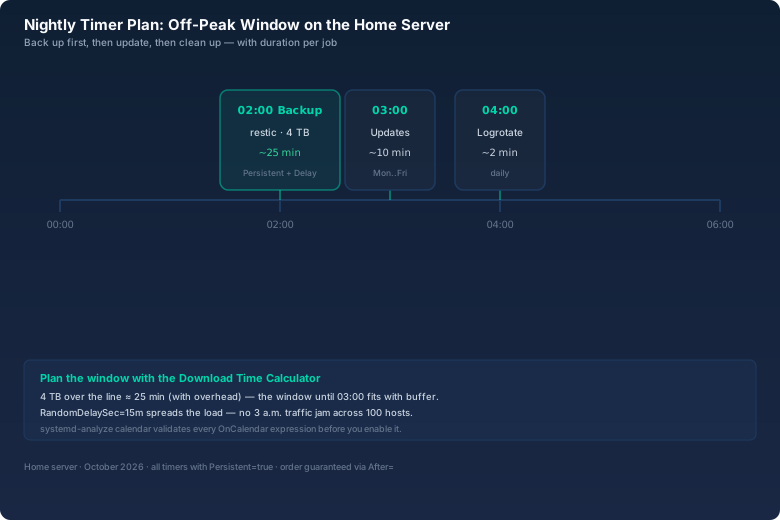
The routine follows a logic: back up the data first, then update the system, then clean up. The backup window is the critical path — I calculated that transferring 4 TB over my line with realistic throughput losses takes about 25 minutes. That's what the bitcalc Download Time Calculator is for: enter file size, line, and overhead, and you know whether the nightly window is enough — or whether you need to start the backup earlier. Mine fits with buffer, but without the math I would only have been guessing.
The timers in short form:
# backup.timer
OnCalendar=*-*-* 02:00:00
Persistent=true
RandomDelaySec=15m

# update.timer
OnCalendar=Mon..Fri 03:00:00

# logrotate.timer (enables systemd's own)
OnCalendar=*-*-* 04:00:00
By the way: if you want to run a job only once without creating a unit, there's systemd-run — the temporary timer for the command line:
# Run once in 10 minutes
systemd-run --on-calendar "*-*-* *:00:10" /usr/local/bin/cleanup.sh

# Run once after boot
systemd-run --on-boot=5min /usr/local/bin/cleanup.sh
That replaces the old at command and is still logged by journald.
When cron is still better — the honest answer
I won't pretend cron is garbage. Three situations where I still use it:
- Minimal systems without systemd: BusyBox containers, Alpine in Docker, BSD jails. systemd simply doesn't exist there, and cron (or BusyBox crond) is the pragmatic choice.
- One-liner maintenance: A job that consists of exactly one command and never grows? One cron line in
/etc/cron.dis faster to write than two unit files. As long as it doesn't grow. - Existing environments: If a team has lived with cron for ten years and it works, migration isn't the right first step. Introduce timers on the next greenfield build, don't dig up a running system.
In my own estate, the rule has been for two years: every new scheduled job is a timer. Migration of legacy happens gradually, when I'm touching the file anyway.
Bottom line
systemd timers are the answer to the questions cron has left open for decades: what happens when the machine was off? How do I spread load? Where are the logs? OnCalendar reads like English, Persistent=true catches up missed jobs, RandomDelaySec spreads load spikes, and journald logs everything. The separation of timer and service takes some getting used to at first, but it pays off immediately when debugging.
My backup disaster back then could have been prevented by a single line. Since the timers are running, I glance at systemctl list-timers in the morning — and know the night did its work, even though the laptop was closed.