
Late in 2023 a client called me. He had just upgraded to a 250 Mbit/s connection, yet backups from his server crawled at around 3 Mbit/s. The line was fine, the router was new, the machine was fast, and interactive SSH over the tunnel felt like dial-up. I sat down in his office, typed two commands, and had the culprit ten minutes later: a single number in the network stack, the MTU, plus the MSS value his VPN client had advertised to the server. No broken cable, no slow provider. It was an overhead problem that two misconfigured devices had turned into a silent bottleneck.
This article is the guide I wished I had back then. It explains what MTU and MSS actually do, why a wrong value keeps downloads and SSH slow even on a gigabit link, and how to find the cause with ping and iproute2 in ten minutes. At the end we get to Jumbo Frames, the big sibling that does more harm than good in the wrong network.
What MTU actually is
MTU stands for Maximum Transmission Unit and describes the largest single data packet a link may carry. Not the raw payload, the whole packet including its header. For classic Ethernet over copper the default is 1500 bytes. That's not a law of physics, it's a convention decades old that every network device follows so they can all understand each other.
Just about every device you plug in assumes this convention. As long as the entire path between two machines carries that size, nothing goes wrong. The trouble starts the moment any link in the chain gets thinner. And links almost always get thinner through tunneling: VPN, GRE, PPPoE. Every encapsulation adds overhead on top of the packet.
Fragmentation: when packets have to be split
When a packet is too large for the next link, a router has two options. It may split the packet into smaller pieces, which is called fragmentation. A 1500-byte packet hitting a link with an MTU of 1420 becomes one 1420-byte fragment plus a leftover of about 80 bytes. Both travel separately and only get reassembled at the destination. That works, and it is exactly what Path MTU Discovery makes visible.
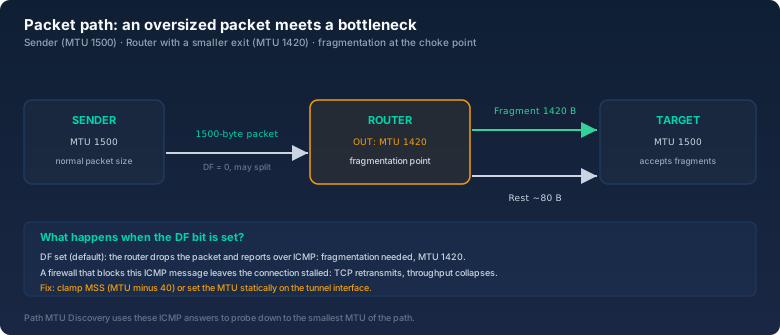
But fragmentation comes at a nasty price. Every fragment costs the router CPU time, and with many large packets the router becomes the bottleneck. Worse: a single lost fragment means all fragments of the packet have to be resent. That's why fragmentation is a stopgap, not a solution.
So there is the DF bit, Don't Fragment, in the IP header. When it's set, which is almost always true in the modern internet, no router is allowed to split the packet. Instead the router drops it and sends back an ICMP message: fragmentation needed, along with the exact smaller MTU. That one message is the core of Path MTU Discovery.
Path MTU Discovery: measuring the route
The sender starts with the full packet size and sets the DF bit. If any router along the way hits a smaller MTU, it drops the packet and reports the smaller limit over ICMP. The sender adjusts its packet size and tries again, gradually working its way down to the smallest MTU on the whole path. Elegant in theory, and it usually works.
The problem: the method depends entirely on that ICMP message. And ICMP is exactly the protocol that overzealous firewalls like to block outright. When the router sends the message but the firewall throws it away, the sender never learns that its packets are too big. It keeps sending full size, the packets get silently dropped mid-route, and TCP has to wait for its retransmit timeout every time before it notices something is missing.
The result is precisely the symptom from my client's story. Traffic doesn't collapse completely, it creeps, because packets keep getting lost and repeated. You notice it first on interactive SSH, where any delay stands out at once. On large downloads the speed falls to a fraction, and a look at the line shows that everything physical is fine.
MSS: the real knob to turn
Enter MSS, the Maximum Segment Size. Where MTU operates on IP packets, MSS concerns the payload of a single TCP segment. During every connection setup, in the TCP handshake, both sides exchange their MSS value.
The default: MSS is MTU minus 40 bytes. Exactly 20 bytes for the IP header and 20 bytes for the TCP header. With MTU 1500 that gives an MSS of 1460. On IPv6 it would be 40 bytes of IP header, so an MSS of 1440. Each side derives its value from the MTU of its local interface. And right there is the trap with every tunnel.
Your machine has an interface with MTU 1500 and proudly announces MSS 1460. But the packet travels through a VPN tunnel whose far side limits the MTU to 1420, because encapsulation adds real overhead. The server now sends segments built for an MTU of 1500. They never fit through the 1420 opening, Path MTU Discovery fails on a blocked ICMP message, and your download starves even though everything looks right on paper.
The fix is called MSS clamping: the router or the VPN client rewrites the MSS value in every handshake to one that fits the smaller MTU. For a tunnel MTU of 1420 that means MSS 1380. The server then never sends packets larger than 1420 bytes, and everything works again. Many tunnel clients do this automatically, but not all of them do it right. That was exactly the case with my client.
Diagnosis in practice: ping and iproute2
How do you find the smallest MTU on your path? With ping and the DF bit. The trick: a ping packet at MTU 1500 carries at most 1472 bytes of payload, because 28 bytes go to the IP and ICMP headers. So send a 1472-byte packet with the DF bit set and watch whether it gets through:
# ping -M do -s 1472 10.0.0.1
PING 10.0.0.1 (10.0.0.1) 1472(1500) bytes of data.
1480 bytes from 10.0.0.1: icmp_seq=1 ttl=64 time=1.23 ms
--- 10.0.0.1 ping statistics ---
1 packets transmitted, 1 received, 0% packet loss, time 0ms
If the packet arrives, MTU 1500 works on this path. If it fails, the MTU is smaller, and you lower the payload until it succeeds:
# ping -M do -s 1472 10.0.0.1
ping: local error: message too long, mtu=1420
# ping -M do -s 1420 10.0.0.1
# ping -M do -s 1392 10.0.0.1
PING 10.0.0.1 (10.0.0.1) 1392(1420) bytes of data.
1400 bytes from 10.0.0.1: icmp_seq=1 ttl=64 time=1.41 ms
A payload of 1392 plus 28 bytes of header is exactly 1420, so that's the MTU of your tunnel. The message too long, mtu=1420 is no coincidence: the local interface knows its own limit and complains immediately. If packets instead go missing mid-route, you'll see timeouts, and that's your cue to suspect a blocked ICMP message. Then a look at the firewall is in order, and if the message really is blocked, the MTU simply has to be set statically.
Once you've found the MTU, set it on the tunnel interface and shorten the MSS value as well. With iproute2 both fit in one command each:
# ip link set dev wg0 mtu 1420
# ip route change default dev wg0 mtu 1420 advmss 1380
The advmss parameter sets the MSS value your system announces in the handshake to 1380. That exact combination was missing at my client's site, and after those two lines the backup ran at over 200 Mbit/s instead of 3. These days I always check the MTU of any new tunnel before I suspect anything else about performance. If you want to estimate the true ceiling of your line, the bitcalc Download Time calculator gives you a quick idea of what a connection should deliver, even while your MTU is throwing a fit.
The VPN case, step by step
So you can recognize the pattern, here's the concrete sequence from the client job. A machine in the office with a LAN MTU of 1500 builds a WireGuard tunnel to a server in the data center. WireGuard runs over UDP, and every encapsulation costs overhead, so the effective MTU of the tunnel lands at 1420. The server's own interfaces sit at 1500 and know nothing about the client's 1420 limit, so it sends segments that never fit through the tunnel. The story from the diagnosis section repeats itself: silent drops, retransmits, a backup that never finishes.
The diagnostic sequence I now hand to every client and use myself:
- Check the baseline: ping your default gateway with 1472 bytes and the DF bit. If that fails, something is already wrong in the LAN.
- Test through the tunnel: run the same ping size at the far end of the tunnel. This shows whether the tunnel carries the full size.
- Lower it step by step: drop the payload in 100-byte steps until the ping gets through, then fine-tune in small steps. Add 28 and you have your MTU.
- Set MTU and MSS: adjust the tunnel with ip link and ip route as shown above, and clamp the MSS value to MTU minus 40.
- Allow ICMP: check that your firewall passes ICMP type 3 code 4 (fragmentation needed), or Discovery will keep failing.
That sounds like a lot, but in practice it's one line per step. If you split your network into subnets and want to keep the paths straight in your head, the bitcalc Subnet Calculator helps you plan routes cleanly, because every route is ultimately an MTU path.
Jumbo Frames: MTU 9000 and where they actually help
Jumbo Frames are frames with an MTU above 1500, typically 9000 bytes. They offload the CPU, because fewer packets have to be processed for the same amount of data, and they cut overhead per byte.
Where they genuinely shine: in an isolated storage network between a server and a NAS, with iSCSI, NFS, or backups over fiber, where both ends and the entire switch support Jumbo Frames. There they measurably raise throughput and lower CPU load on the machines involved. I use them in exactly one segment, the backend network between two backup servers and the NAS, and the backups there finish measurably faster.
Where they hurt: anywhere some device can't or won't handle 9000. Jumbo Frames only work when the whole path, both network cards, every switch, and any CPU in between supports the larger MTU. A single switch or a misconfigured card on the path breaks the connection, in the most annoying way: first everything runs, then a transfer stalls because a segment hit a 1500 link.
Just as important: Jumbo Frames never belong in a segment that touches the internet or a VPN. Public networks and tunnels run at 1500 or below, and a server with MTU 9000 that needs to reach the internet only creates fragmentation problems there. The rule of thumb: use Jumbo Frames only on an isolated layer-2 segment, never across a router that points toward the internet.
What does that mean at home? A homelab with a handful of devices and a simple switch gains almost nothing from Jumbo Frames, because the CPU is rarely the bottleneck there. Only with 10-gigabit storage and many parallel large transfers does the effort pay off. So measure the benefit first instead of setting MTU to 9000 on principle, because in the worst case you make your network slower, not faster.
When I touch the MTU
A few fixed occasions where I actively check the MTU:
- Every new VPN or tunnel: right after it comes up I test the maximum ping size through it and clamp the MSS value to fit. That saves most of the support headaches.
- Downloads that crawl despite a fast line: before I blame the provider or the hardware, I measure the MTU path. Most of the time it's overhead, not bandwidth.
- SSH or remote sessions that stall intermittently: the classic MTU symptom isn't a full drop, it's a sense of latency that comes and goes.
- PPPoE connections: many fiber and DSL lines use PPPoE, which costs 8 bytes of overhead. That's why the MTU there is usually 1492 instead of 1500, and static MSS clamping to 1452 belongs in the setup.
- After any change to the network: a new switch, a new firewall rule, a new WAN line. Every change can shift the smallest MTU.
The bitcalc Download Time calculator helps you see the realistic upper bound, because when theory promises 100 Mbit/s and you're stuck at 3, the odds that MTU or MSS is the culprit are very high.
Bottom line
MTU and MSS aren't dry theory, they're the most common invisible cause of slow connections. MTU limits the packet size per link, Path MTU Discovery finds the smallest limit on the path, and the MSS value makes sure TCP segments fit from the start. As soon as a tunnel adds overhead, the effective MTU drops, and without MSS clamping both sides send too much.
Every Linux admin already has the tools: ping with the DF bit measures the path, iproute2 sets MTU and MSS in two lines, and one firewall rule keeps Discovery alive. For my client that combination turned a 3 Mbit/s ordeal into a backup that actually uses the line. Since then my first question about any slow connection isn't how fast the link is, it's how big the packets are allowed to be.