
At 2:47 in the morning, my phone lit up. Not the alarm, the monitoring: the cron job that was supposed to push the backup from the web server to the NAS at 2:45 was dead. rsync had aborted. I stood in front of the machine in my pajamas and did what I had been doing for fifteen years: I opened /var/log/syslog and looked for the needle in the haystack. 500 lines later, after three wrong suspects, I had the cause. The backup partition was full, and the backup had shot itself in the foot. Today the same diagnosis takes me one command and three seconds:
$ journalctl -u backup.service --since '02:45' --until '02:50'
Feb 21 02:45:01 web01 systemd[1]: Started backup.service.
Feb 21 02:45:01 web01 backup.sh[1277]: mounting /mnt/backup
Feb 21 02:45:03 web01 backup.sh[1277]: rsync: [Receiver] write failed on /mnt/backup: No space left on device (28)
Feb 21 02:45:03 web01 backup.sh[1277]: rsync error: some files could not be transferred (code 23)
Feb 21 02:45:03 web01 systemd[1]: backup.service: Main process exited, code=exited, status=23/n/a
Feb 21 02:45:03 web01 systemd[1]: backup.service: Failed with result 'exit-code'.
That is what this article is about: journald, structured logs, and the question of whether /var/log still has a right to exist at all.
Why /var/log/syslog hurts so much
Before I get to the commands, a quick diagnosis of why classic syslog hurts so much. I run about twenty servers, half of them Debian, plus a few Ubuntu machines and one ancient CentOS box that is only being migrated. On all of them, the same story played out for years: /var/log/syslog, /var/log/auth.log, /var/log/kern.log, plus a separate file for every service. And every application writes its own format. The cron daemon writes Feb 21 03:12:44 web01 CRON[1234]: (root) CMD (backup.sh). rsync writes rsync error: some files could not be transferred. The firewall writes something else again. You can't filter that, you can only grep it, and grep over a 40-megabyte file is a search, not a tool.
Then there's rotation. Everyone knows logrotate, but logrotate is a patchwork: every app needs its own config, every admin forgets it, and sooner or later a file sits somewhere that has been growing since March. On a client's server I once found a /var/log with 14 gigabytes, because a PHP script was writing to a log file that belonged to nobody. The disk was full, the website was down, and the cause had been sitting in a file that was never rotated for three months. And then there's the boot problem: when a server reboots and something doesn't work afterward, syslog won't tell you what happened before the restart. The file is gone, and so is the answer.
What journald does differently
journald, systemd's logging service, solves exactly these three problems. Since systemd 219 it has been the standard on practically every modern Linux, whether you like it or not. It collects everything in one place: kernel messages, systemd units, cron, SSH, Docker containers, plus the standard output of services. The journal is a binary database in /var/log/journal, not text files. That sounds like a step backwards at first, but it's the core of the whole thing: because every message is stored as a structured record, you filter by fields, not by text. You don't ask "which line mentions backup?", you ask "what did the unit backup.service log during this boot?". That's a different way of thinking, and it's the way of thinking this article wants to establish.
journalctl -f: a live window on the whole system
The first command to remember is journalctl -f. It's tail -f for the entire system. I use it in almost every debugging session: restart the service, let journalctl -f run, and you see live what the service prints on startup. With a web server that won't come up, that's often faster than any log file, because there's no file to hunt for. A case from practice: a Django service that needed a database connection at startup and gave up after a ten-second timeout. journalctl -f showed me the timeout live while I started the database. The order of events was clear at a glance, no timestamp comparison needed.
Time windows with --since and --until
The second command is the time window. journalctl --since 'today' shows everything from today, journalctl --since '1 hour ago' the last hour, journalctl --since '2026-10-08 14:00' --until '2026-10-08 15:00' an exact window. That sounds trivial, but it's the difference between "I'm searching" and "I already know where". For my nightly backup problem: journalctl --since '02:45' --until '02:50'. A five-minute window, twelve entries, cause in the second line. By the way, timestamps have been local by default since systemd 233, before that they were UTC. A detail that has confused many an admin, because the logs suddenly sat two hours off.
Boot separation with -b
The third command is my secret favorite: -b, for boot. Every system start gets its own boot ID, and journalctl -b shows only the messages of the current boot. journalctl -b -1 the previous one, -b -2 the one before that. Why is this so valuable? The classic case: the server was restarted, and afterwards the Docker container won't start. In the syslog era, the old boot session was gone. With journald you type journalctl -b -1 -u docker.service and see exactly what went wrong during the last start. On a host that reboots automatically once a week, that's pure gold. I once used it to find a bug that only appeared after the monthly kernel update, because the old module was still loaded during the previous boot.
One unit in view with -u
The fourth command is the unit filter. journalctl -u nginx.service shows everything about nginx, whether systemd starts the service or the process writes to standard output. You can combine several units: journalctl -u nginx.service -u php8.2-fpm.service shows both side by side, sorted chronologically. That replaces the old dance with two log files and two tail processes. And combined with --since, it's the most powerful question an admin can ask: "What did this unit do in this time window?". That's exactly my backup diagnosis: journalctl -u backup.service --since '02:45' --until '02:50'.
Filtering by priority with -p
The fifth command is the priority filter. journald knows the syslog priorities 0 (emerg) through 7 (debug). journalctl -p err shows only errors and worse, journalctl -p warning warnings and errors. What I use daily: journalctl -p warning --since 'today' as a morning routine. Five seconds, and I know whether the server coughed during the night. A single kernel error at 3 a.m. is often the harbinger of hardware problems, long before they become visible.
The JSON moment: 500 lines become one object
Now we get to the part that sets this article apart: structured output. This is the moment when the 500-line syslog wall becomes a JSON object. The command is journalctl -o json. For human eyes there's journalctl -o json-pretty, which formats every message as a readable object:
$ journalctl -u backup.service --since '02:45' -p err -o json-pretty
{
        "PRIORITY" : "3",
        "SYSLOG_IDENTIFIER" : "backup.sh",
        "_PID" : "1277",
        "_BOOT_ID" : "3a9f1c2d7e0b4e6e9f8a1b2c3d4e5f60",
        "_HOSTNAME" : "web01",
        "MESSAGE" : "rsync error: some files could not be transferred (code 23)"
}
Every line that used to be unstructured text is now a record with fields: PRIORITY as a number, SYSLOG_IDENTIFIER as a string, __REALTIME_TIMESTAMP as microseconds since the epoch, plus automatically set fields like _BOOT_ID, _PID, and _HOSTNAME. You can pipe that straight into jq and grab fields. journalctl -o json | jq -r 'select(.PRIORITY == "3") | .MESSAGE' returns all error messages as a plain text list. No grep pattern for twenty different formats, just a clean query on a field that is guaranteed to exist. If you want to see once which fields journald really stores per entry: drop a single object from the output into the bitcalc JSON Formatter, and the full structure is visible at a glance.
And this is where monitoring begins. Structured logs are the prerequisite for automated analysis. I have a small script that queries journalctl -o json --since '1 min ago' once a minute and sends every record with a priority of err or worse to the monitoring system. In the syslog era that would have been a regex nightmare. Today it's a filter condition. And anyone who wants to evaluate logs across multiple servers will end up with tools like Loki, Elasticsearch, or Splunk sooner or later. Those expect structured data, and JSON is their native language. Once you've seen an error from thirty servers land in a single search as one uniform JSON object, you never go back to plain text files.
Size and rotation: the journal doesn't grow forever
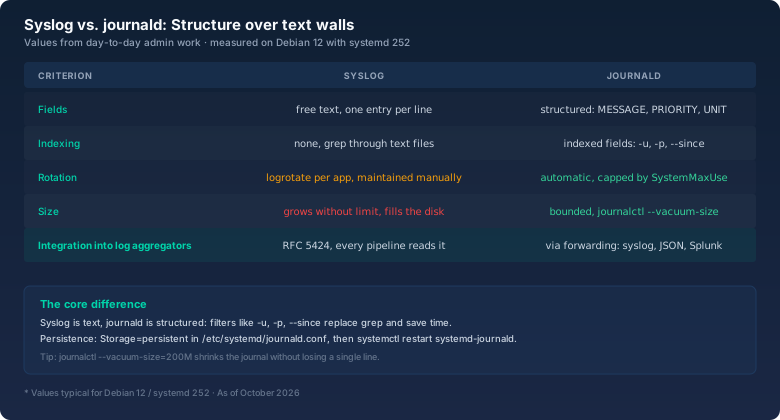
Now the question every admin asks first: does the journal grow forever? No, and that's the point where journald is clearly ahead of syslog. Rotation is built in, not bolted on. The most important parameter is SystemMaxUse in /etc/systemd/journald.conf. The default is ten percent of the partition the journal lives on. On a server with a 100-gigabyte root that's 10 gigabytes, more than enough for weeks of logs. If you want less, set SystemMaxUse=500M and restart the service:
$ journalctl --disk-usage
Archived and active journals take up 812.0M in the file system.
$ journalctl --vacuum-size=200M
Vacuuming done, freed 612.0M of archived journals from /var/log/journal.
The two commands I type more often than any others: journalctl --disk-usage shows current usage, journalctl --vacuum-size=200M shrinks the journal to the given size without you deleting a single line by hand. And --vacuum-time=30d removes everything older than 30 days. The old logrotate config for twelve files can go, journald does it on its own.
Persistence: the journal survives the reboot
A detail many people miss: journald keeps its data in RAM by default when /var/log/journal doesn't exist. After a reboot, everything is gone. On most distributions the installer creates the directory, and systemd sets Storage=auto, which means "persistent, if the directory exists". If you're not sure, check with ls /var/log/journal and create it if needed: mkdir -p /var/log/journal, then systemctl restart systemd-journald. Alternatively, write Storage=persistent explicitly into journald.conf. On the servers I manage, that's the standard ever since I once lost, after a crash, exactly the ten minutes before the reboot in which the error had happened.
Forwarding: when the old syslog has to live on
Some teams still need a syslog server because monitoring or compliance demands it. journald can do that: ForwardToSyslog=yes in journald.conf sends every message to the local syslog daemon, which transports it as usual. The journal stays the source of truth, syslog becomes the export channel. If you want central collection, systemd-journal-remote offers a native protocol that transfers structured data, no text squeezing. For large setups the classic remains the pipe: journalctl -o json into an aggregation tool, because every pipeline eats JSON these days.
When /var/log still wins
Even so, there are cases where /var/log lives on, and I won't pretend they don't exist. First: applications that only write to files. nginx writes its access.log in its own format, many Java applications log to files through Log4j, PHP-FPM has its own slow and error logs. journald only gets what the process writes to standard output, and that's often nothing at all. Second: tools that expect files. Some monitoring agents, log shippers, and forensics tools want a path, not a journalctl call. Third: legacy. As long as a service defines its own log format and nobody wants to change it, the file stays. The pragmatic path: keep those files small with logrotate, and let everything else that systemd starts run through the journal. I have exactly two logrotate files left on my servers, both for services that don't write their logs into the journal. The rest is history.
Bottom line
Back to the night at 2:47. I found that backup problem with journalctl -u backup.service --since '02:45', in three seconds, in my pajamas. The 500-line wall from /var/log/syslog no longer exists for me. What remains are structured records I can filter by unit, time, priority, and boot, that rotate themselves, that survive reboots, and that export to JSON whenever some tool needs them. journald isn't perfect, and the text file isn't going away. But for anyone setting up a system today, the question is no longer whether to use structured logs. The question is when to start.