
A few years ago, a developer called me because his script had "suddenly stopped working". It had been pulling data from an API for months, and from one day to the next it only returned errors. I looked at the script — it used curl with a dozen flags nobody on the team could explain anymore, and above all: it hid every error message. Ten minutes later the cause was clear: the API had changed its Basic Auth requirements, and the script had been sending a broken header ever since. Without curl I'd never have found that so fast — and without the right flags, debugging would have been guesswork.
curl and wget are the two tools every admin uses a hundred times a day and rarely truly understands. This article clears that up: curl for APIs (more control, more options), wget for downloads (resuming, mirroring), the flags I use daily, and a cheat sheet at the end you can print out.
curl or wget? The division of labor that works
Both can do HTTP, but their hearts beat differently. curl (since 1997, built on the libcurl library) is the Swiss Army knife for requests: you control method, headers, body, certificates, cookies, timeouts — over 200 options. That's why curl is the standard for API work, in CI systems, and in every script that talks to a web server. wget (GNU, since 1996) is the download specialist: it can resume files (-c), mirror whole websites (--recursive), wait, and retry — things curl can only do awkwardly.
My rule of thumb: reading responses → curl, fetching files → wget. When you're testing API endpoints, curl is the choice. When you're pulling a 4-GB ISO or a backup file, wget with -c is the friend that picks up where an interrupted transfer left off.
The first GET: status, headers, and all the rest
The simplest API call is a GET — but the bare response tells you little if you don't know whether it came from the server or a cache. That's why these three variants are the start of every curl career:
# Show only the HTTP status (perfect for monitoring)
curl -sS -o /dev/null -w "%{http_code}\n" https://api.example.com/v1/health

# Show response headers (cache, server, CORS)
curl -sSI https://example.com

# Show everything: connection setup, TLS, request and response headers
curl -v https://example.com
The -w (write-out) is my secret favorite. You can output not just the status but also timings: %{time_total}, %{time_connect}, %{time_starttransfer}. That measures in one line whether an API is slow because the server is dawdling or because the line is the bottleneck — exactly what you need for the first 5 minutes of any performance problem. If you want to put those numbers in perspective, the bitcalc Download Time Calculator helps: it works out how long a given file size takes over a connection including overhead — the same way of thinking, just for the other direction.
Basic Auth: what -u really does
Many APIs require a username and password. curl makes that convenient:
curl -sS -u admin:myPassword https://api.example.com/v1/usersWhat happens here is unclear to many: curl takes admin:myPassword, encodes it as Base64, and sends it as Authorization: Basic YWRtaW46bXlQYXNzd29yZA==. That's not encryption — Base64 is just an encoding anyone can read backwards. If you want to verify that yourself, use the bitcalc Base64 Encoder: type in admin:myPassword and you'll see exactly the string that goes into the Authorization header. If you've ever wondered what the API actually expects, this helps enormously when an auth doesn't work.
Two consequences follow:
- Basic Auth only over HTTPS. Over HTTP, anyone on the same Wi-Fi reads your password straight out of the header — Base64 is not protection, it's transparency.
- Don't put passwords on the command line.
ps auxshows every running command including its arguments. Usecurl --netrcwith achmod 600file, or read credentials from an environment variable:curl -u "$API_USER:$API_PASS". In CI systems, secrets belong in the secret store, never in the command.
Making JSON responses readable: the jq pipeline
An API response in raw form is one endless line. It only becomes practical with jq — the JSON parser for the terminal, which I covered in detail in the JSON article. The combination is simple and powerful:
# Show the response pretty-printed
curl -sS https://api.example.com/v1/users | jq

# Extract only the names
curl -sS https://api.example.com/v1/users | jq '.users[].name'

# Counting and filtering
curl -sS https://api.example.com/v1/users | jq 'length'
curl -sS https://api.example.com/v1/users | jq '[.users[] | select(.active == true)] | length'
If you don't have jq installed or want to validate a response quickly, the bitcalc JSON Formatter formats the same input in the browser — with a tree view, error hints, and clean indentation. I use both: jq in the terminal for pipelines, the formatter in the browser when someone hands me a response from the API docs and I want to understand what's in it first.
POST, PUT, DELETE: methods in daily life
Sending data is the second big use case. The most important detail: -d sets the method to POST automatically. Many people think they need -X POST — usually -d alone is enough. -X is only truly needed when you want to force a method curl wouldn't choose otherwise (such as PUT or DELETE with an empty body).
# Send JSON (method becomes POST automatically)
curl -sS -H "Content-Type: application/json" \
  -d '{"name":"new-server","role":"web"}' \
  https://api.example.com/v1/servers

# Explicit DELETE
curl -sS -X DELETE https://api.example.com/v1/servers/42

# Send a file as body
curl -sS -H "Content-Type: application/json" --data @payload.json \
  https://api.example.com/v1/import
The --data @file trick is worth its weight in gold: instead of a huge JSON string on the command line (with all its quoting traps), curl reads the body from a file. That keeps scripts maintainable and avoids the infamous "I can't see the error because the JSON in the command is misquoted" sessions.
Downloads: wget -c and the art of resuming
Now the wget part. The most important option of all is -c (continue):
# Resume a download after an interruption
wget -c https://example.com/backup-2026-10.iso

# In the background with a log
wget -b -o download.log https://example.com/backup-2026-10.iso
During my time as a consultant, I repeatedly pulled backup files of several gigabytes over unreliable lines. Without wget -c, every interruption meant starting over. With -c, a 6-GB download simply continued after the third interruption — 40 minutes total instead of three times 60. The file at the end was identical, because wget checks the length and fetches only the missing bytes.
If you want to plan the download beforehand, do the math with the bitcalc Download Time Calculator: enter file size and connection, factor in overhead and real throughput losses — and you'll know whether the overnight backup download fits into the maintenance window. For me that has already prevented standing in front of a half-finished download at 2 a.m. twice.
For curl downloads, by the way: curl -sSLO saves under the server's filename, -o file under a name of your choice. And if you want to pull a file at limited speed so your colleagues can still browse: curl --limit-rate 200k or wget --limit-rate=200k.
Error handling: so scripts stop lying
The biggest mistake in curl scripts is silent failure. Plain curl returns exit code 0 even on an HTTP 404 — your script thinks "all good" while the API says "not found". Three flags make curl honest:
# Non-zero exit code on HTTP errors (4xx/5xx)
curl -sS --fail https://api.example.com/v1/users

# Retry with backoff
curl -sS --fail --retry 3 --retry-all-errors https://api.example.com/v1/users

# Timeout instead of forever
curl -sS --max-time 30 https://api.example.com/v1/users
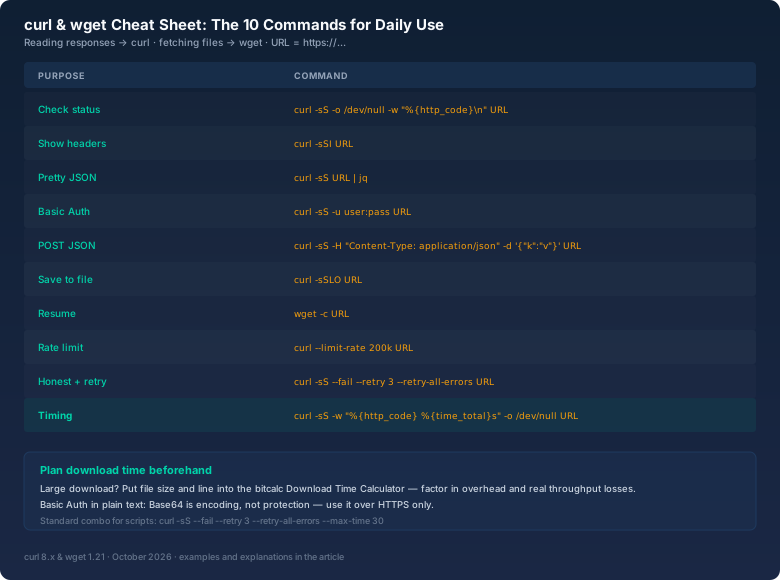
That makes a CI job that queries an API honest: if the API fails, the job fails — and the logs say why. --max-time is the lifeline for cron jobs that would otherwise run forever on a hung server. My standard combination for every API check in scripts is: curl -sS --fail --retry 3 --retry-all-errors --max-time 30. That covers 90 percent of cases, and the remaining 10 percent are exactly the ones you really want to see.
Certificates: -k is a crime
A chapter of its own: curl -k (and wget --no-check-certificate) skip TLS certificate verification. That's the wrong fix in 99 percent of cases — you're disabling exactly the protection that guards against man-in-the-middle attacks. If a certificate doesn't match, the right answer is to fix the problem, not to turn off the check.
The legitimate alternatives:
- Your own CA certificate:
curl --cacert /path/to/ca.pem— for internal certificates from your own CA. - Host override:
curl --resolve api.internal:443:192.168.10.5— when the DNS name in the certificate doesn't match the reachable IP, but the certificate is otherwise correct. - Fingerprint check:
curl --pinnedpubkey sha256//...or cross-check the certificate fingerprint against the operator's published values with the bitcalc Hash Generator.
I inherited a client script that ran with -k for years because someone once had an expired certificate and no time to fix it. Since then, nobody checks whether the connection really goes to that server. Such legacy should be removed, not maintained.
The cheat sheet for daily use
Finally, the commands I genuinely use all the time — as an infographic to pin up and as a reference for the next debugging session:
And here's the anatomy of a typical API call, so the flags stop feeling like magic symbols:
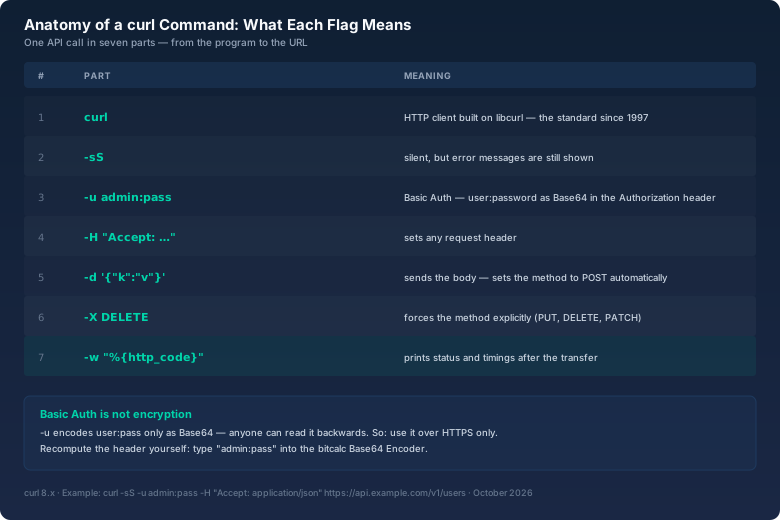
admin:password into the Base64 Encoder and recompute the Authorization header yourself — then you'll know whether curl or the API is the problem.Bottom line
curl and wget aren't rivals, they're a team: curl for control over every request, wget for patience with large downloads. The most important lessons from my daily work: -w gives you timing instead of guesswork, -u is Base64 and not protection, --fail --retry --max-time make scripts honest, and -k is almost always a mistake. Internalize those five points and you'll debug APIs faster than most — and if you use the rest of the cheat sheet, you have the tool behind every good admin story.
The developer's script from back then still runs today, by the way. With clean flags, credentials from the environment, and a --fail that finally tells the truth.