
The first call came on a Monday at 8:40 a.m. A colleague from accounting, her laptop was showing a blue screen at boot with an ominous message: BitLocker had interrupted startup, and she needed the recovery key. 48 digits, it said. She had no idea what that meant, and I have to admit my heart skipped a beat too. Then I remembered: we had rolled out BitLocker via Group Policy more than a year earlier, with automatic key escrow to Active Directory. I opened ADUC, searched for the computer object, clicked on the BitLocker recovery information, and had the key on screen in under two minutes. She typed in the digits, the laptop booted, and five minutes later she was back in the accounting software. That was the moment I understood why drive encryption in a company is not something you switch on and forget: you manage it.
I've been looking after the Windows clients in a mid-sized company domain for several years, around 400 machines, mostly Windows 11 Enterprise. BitLocker has been the standard there since 2024. In this article I'll walk through how the encryption works technically, how to manage it centrally, where the 48-digit recovery key lives, and where the whole thing has its limits. The commands come from my daily work, not from manuals.
What BitLocker actually is: XTS-AES and the TPM
BitLocker is a volume encryption: the entire content of a partition gets encrypted, not individual files or folders. Since Windows 10 (version 1511) BitLocker uses XTS-AES, by default with 128-bit keys, and Group Policy can enforce XTS-AES-256. In the enterprise that's the usual choice, and on current hardware the difference isn't measurable anyway. Encryption and decryption happen transparently in the storage driver: applications only ever see plaintext, what's on the disk is ciphertext.
The key itself never sits on the disk. For the system drive, unlocking goes through the TPM, in practice these days TPM 2.0. That's a security chip on the motherboard that, among other things, stores the measurements of the boot process, the so-called PCRs. If the bootloader changes, say through a bootkit, the TPM won't release the drive. That's the elegant core of the concept: encryption hangs on the hardware, not on a password stuck to the monitor.
Without a TPM, BitLocker still works, with two alternatives: a USB stick as the startup key, or a startup passphrase you have to type before every boot. On physical corporate machines this hasn't been an issue for years, because TPM 2.0 has been standard since 2016. It becomes relevant with virtual machines, where people routinely forget to create a vTPM. And if you do use a startup passphrase, don't type one yourself: generate it with the bitcalc Password Generator and store it somewhere safe. Self-typed passphrases tend to end up on a sticky note sooner or later.
Manage, don't just enable: GPOs, AD escrow, MBAM, and Intune
The decisive step isn't enabling BitLocker, it's managing BitLocker. In an Active Directory domain that starts with Group Policy under Computer Configuration, Administrative Templates, Windows Components, BitLocker Drive Encryption. The most important settings in my setup: XTS-AES-256 as the encryption method, TPM as a mandatory protector, and the one setting you must never skip: don't enable BitLocker until the recovery information has been stored in Active Directory Domain Services.
That setting is the heart of the escrow. When BitLocker rolls out, the client automatically stores the recovery key in the machine's computer object in AD, as the attribute msFVE-RecoveryInformation. I check this once for every new client, either through ADUC with advanced features enabled or via PowerShell with Get-ADComputer. If the key doesn't show up there, the policy is wrong, and the machine doesn't belong in production yet.
The classic management layer on top of AD is MBAM, Microsoft BitLocker Administration and Monitoring. MBAM puts an agent on the client, provides compliance reporting, and runs a self-service portal where users can fetch their own recovery key without calling the help desk. Its successor is BitLocker management in Microsoft Intune, which works through the Windows 10 and 11 enrollment and mirrors the same information to the cloud. If I were setting up a new company today, I'd go with Intune; MBAM is the path for existing ConfigMgr environments.
The rollout command itself is unspectacular. On a freshly joined client it looks like this:
Enable-BitLocker -MountPoint C: -RecoveryPasswordProtector -SkipHardwareTestWith -RecoveryPasswordProtector you explicitly create the 48-digit recovery key as a protector. In a domain with the right GPO, the client handles the escrow automatically after activation. If you work without GPO, you back up the key manually: Backup-BitLockerKeyProtector -MountPoint C: -KeyProtectorId, with the ID coming from Get-BitLockerVolume. If the escrow fails, the key still appears, but only locally on the machine. And local to the machine means: gone the moment the machine is gone.
The 48-digit recovery key: where it lives and how it works
The recovery key is a number with 48 digits, split into eight groups of six digits each, roughly 123456-789012-345678-901234-567890-123456-789012-345678. It's generated when BitLocker is activated and it isn't a password in the classic sense: you're not supposed to memorize it, you're supposed to store it. 48 digits correspond to roughly 159 bits of entropy, which nobody wants to type or memorize, and that's exactly what the escrow is for.
Here's how the worst case plays out, the call from the intro. The laptop doesn't boot normally but shows the BitLocker recovery screen: a field for the 48 digits and a short ID that identifies the key. The user reads out that ID or photographs the screen. The admin searches AD for the computer object, opens the BitLocker recovery information, and matches the ID that sits next to the key. If it matches, the key gets read out, the user types it in, the drive unlocks, and the machine boots normally. For us, after switching to the policy, this process took exactly two minutes once, and never more than ten since.
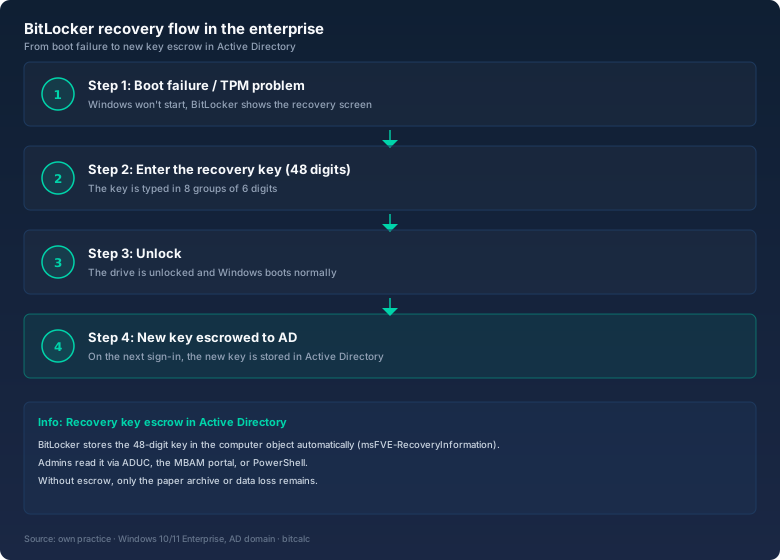
Since that Monday I deliberately test the recovery once a year: a test machine gets locked, the key gets looked up in AD, the whole flow gets played through. Sounds like bureaucracy, but it saves exactly those moments when the boss stands next to you asking how much longer this is going to take. If you've never tested the flow, you'll run it for the first time under time pressure in a real incident.
Where the keys of all machines live matters as much as the key itself: in AD as msFVE-RecoveryInformation, with MBAM or Intune also in the portal, and in an encrypted backup for emergencies. Not on the same laptop, not in the notebook next to it, and certainly not on the unencrypted drive you're trying to protect.
Day-to-day operations: suspend, the SSD myth, and BitLocker To Go
The most common operational question is what happens before a firmware update. Before BIOS, UEFI, or TPM updates, BitLocker needs to be suspended, otherwise the TPM will refuse to cooperate after the update because the PCR values have changed, and the machine lands on the recovery screen. Many people don't understand the difference between suspend and disable: suspend keeps the protectors and reactivates automatically at the next boot. Disable removes the protectors completely, and the machine boots without any prompt until you recreate them. In my update workflow I only ever use suspend, via command: manage-bde -protectors -suspend C: and after the update manage-bde -protectors -resume C:. The classic mistake is suspending, postponing the update, and forgetting about it three weeks later. The machine runs unencrypted in the meantime.
The second evergreen is the performance myth. On modern hardware the overhead is practically unmeasurable. Current CPUs have AES-NI, hardware acceleration for encryption, and NVMe SSDs read faster than a single core can process. In my CrystalDiskMark measurements on a current notebook, the difference between encrypted and unencrypted was within measurement noise. The myth dates back to the HDD era: classic hard drives on weak CPUs could indeed lose ten to twenty percent. If you still have HDDs in your fleet, you'll feel it there; on SSDs you won't.
The third daily task is BitLocker To Go for removable media. It encrypts USB sticks, with a password or smart card. The stick is then readable on any Windows machine that knows the password, including outside the domain. Group Policy can enforce that write access to non-encrypted removable media is blocked, a standard building block in environments with data protection requirements. My honest tip: generate the stick's password with the bitcalc Password Generator and store it in your password vault. A lost BitLocker To Go password usually means the stick gets formatted.
The honest limit: what BitLocker protects against and what it doesn't
BitLocker protects against device loss. A stolen laptop, a harvested hard drive, a removed NVMe drive: without the key, everything stays ciphertext. That's the use case the encryption was built for, and it handles it reliably. Classic offline attacks, where an attacker manipulates the boot process, are also made harder by the TPM measurement, because the TPM detects the altered boot path and refuses to release the key.
What BitLocker can't do: it doesn't protect against a compromised, running system. If an attacker has admin rights on a booted machine, they read the data in plaintext, encrypted or not. Encryption acts on the drive, not on the session. The protection becomes equally worthless when the recovery key itself falls into the wrong hands: whoever has the key unlocks the drive, stolen or not. That's why access to the recovery information in AD needs to be tightly controlled, and why you shouldn't hand out permissions on the computer objects generously.
Perspective, without sugar-coating: encryption is one layer among several. BitLocker belongs in a bigger picture together with LAPS for local admin passwords, Credential Guard, and proper endpoint detection. If you think BitLocker makes the security team unemployed, you're confusing the locker with the bouncer.
The commands you actually need
Most things in the domain run through GPOs and Intune, but manual work still happens. These five commands cover everything in my daily life:
# Check status and encryption level
manage-bde -status

# List protectors: TPM, recovery key, key ID
manage-bde -protectors -get C:

# Start encryption with a recovery password protector
Enable-BitLocker -MountPoint C: -RecoveryPasswordProtector -SkipHardwareTest

# Back up the recovery key to AD manually
$v = Get-BitLockerVolume -MountPoint C:
Backup-BitLockerKeyProtector -MountPoint C: -KeyProtectorId $v.KeyProtector[1].KeyProtectorId

# Before firmware updates: suspend, then resume
manage-bde -protectors -suspend C:
manage-bde -protectors -resume C:
manage-bde -status is the first command for any problem: it shows whether the drive is fully encrypted, which protectors exist, and whether the key has been backed up. If you want to verify backups of key files or exported key texts, compare two versions with the bitcalc Hash Generator: matching hashes mean nothing was altered or mistyped.
Bottom line
BitLocker is the only drive encryption in the Windows universe that is genuinely manageable. TPM 2.0 binds the key to the hardware, XTS-AES-256 provides the crypto, the escrow to Active Directory makes the 48-digit key findable, and MBAM or Intune deliver reporting and self-service. Once you've set that up, the famous Monday-morning call doesn't exist anymore. It takes two minutes instead of two days.
If you're setting this up for the first time: start with the GPO that requires escrow, roll out BitLocker to a pilot group, and test the recovery deliberately. Then extend to the rest of the fleet. And when you're standing at the point where a machine won't boot: AD knows where the key is. That's the whole art.