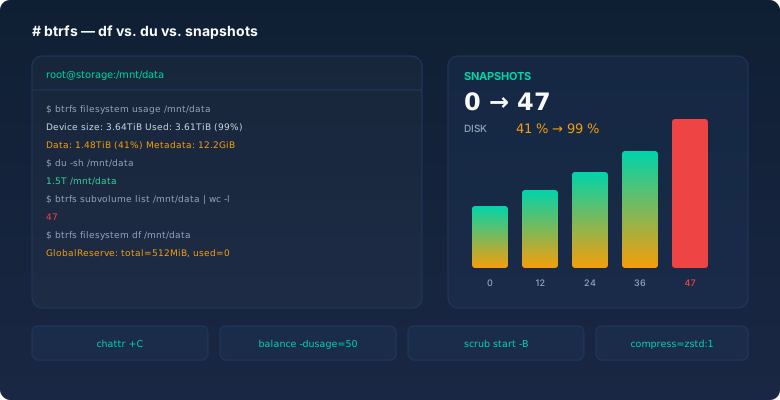
The call came on a Friday afternoon, ten minutes before I wanted to leave. A backup server had run out of space, df showed 100 percent, and the nightly jobs would have gone nowhere. I logged in, ran du -sh over the data directory, and counted 1.5 TB. On a filesystem with 3.6 TB of usable capacity. Two completely different numbers describing the same thing, and neither of them wrong.
The explanation was btrfs. The server had been running hourly snapshots for months, triggered by a script somebody set up and then forgot about. Every snapshot kept old blocks alive that nobody had needed for weeks. When I finally counted, there were 47 of them. The space had not been eaten by my data, but by its history. Since that day I have one rule: if you run btrfs without knowing btrfs filesystem df, compsize and btrfs subvolume list by heart, you are running it blind.
This article is what two years of btrfs on backup and virtualisation servers taught me, backed by numbers from my own measurements rather than feature lists.
Where btrfs stands today
Eight years ago I avoided btrfs, and back then that was the right call. The balance bug that filled up pools, the RAID 5/6 write hole, the missing tools for defragmentation: there were plenty of reasons to reach for ZFS or ext4 instead. That has changed. The 6.x kernel series brought it to a stable footing, btrfs is the default on openSUSE and SUSE Enterprise, Fedora ships it on workstations, and Synology builds its NAS snapshots on it. This is no longer niche software.
What makes btrfs interesting are three properties that together actually matter. It works copy-on-write, it carries checksums for both data and metadata, and it treats subvolumes as standalone, addressable units. Everything else — snapshots, compression, RAID, send/receive — falls out of those three. Once that clicks, you can predict a great deal without opening a manual.
What btrfs is not: a replacement for a backup. That sounds obvious, and it is still the mistake I see most often.
Subvolumes: directories you can treat individually
A subvolume is not a directory, even though it looks like one in your shell. It is its own tree with its own inode number and its own root, which you can snapshot, send and mount individually. The rest of the feature set rests on exactly that.
My standard layout looks like this, and it has held up on essentially every system I have built:
# btrfs subvolume create /mnt/data/@
# btrfs subvolume create /mnt/data/@log
# btrfs subvolume create /mnt/data/@vm
# btrfs subvolume create /mnt/data/@snapshots
# btrfs subvolume list /mnt/data
ID 256 gen 18422 top level 5 path @
ID 257 gen 18419 top level 5 path @log
ID 258 gen 18417 top level 5 path @vm
ID 260 gen 18405 top level 5 path @snapshots
The point is not tidiness, it is separation. Everything I want backed up lives in @. Everything I never want backed up — logs, caches, core dumps — lives in @log, and the snapshots themselves live in @snapshots. When I snapshot @, that snapshot contains no logs and no other snapshots. That keeps rollbacks clean and stops snapshot chains from nesting into each other and multiplying the space they need.
That last rule gets left out a lot. If you snapshot the snapshot folder along with everything else, you build recursion. I have seen pools with 7,000 subvolumes where nobody could say which one descended from which. That was not a tooling problem, it was a layout problem.
Snapshots: the cheapest point in time there is
A snapshot on btrfs is not a copy operation. It creates a new tree pointing at the same blocks, and as soon as something is written, the changed blocks get fresh space. It is the same mechanism as a reflink copy, which is why a snapshot of a 500 GB subvolume is done in under a second when nothing has changed.
# btrfs subvolume snapshot -r /mnt/data/@ /mnt/data/@snapshots/@-2026-10-22-0300
Create readonly snapshot of '/mnt/data/@' in '/mnt/data/@snapshots/@-2026-10-22-0300'
The -r makes it read-only. That is not cosmetic: a writable snapshot can keep running and keep changing, and a backup that changes underneath you is not a backup. Read-only costs nothing and rules out an entire class of mistakes.
The real payoff arrives with send and receive. Because btrfs knows which blocks two snapshots share, it can push only the difference as a stream:
# btrfs send -p /mnt/data/@snapshots/@-2026-10-21-0300 \
               /mnt/data/@snapshots/@-2026-10-22-0300 \
  | ssh backup-host "btrfs receive /backup/"
In my case that is roughly 18 GB of real daily change crossing the wire for a subvolume holding 1.4 TB — not 1.4 TB. The first stream is a full one and takes all night over Gigabit Ethernet, but after that the backup duration is set by your change rate, not your data volume. If you want to know how long that initial stream will take, the bitcalc Download Time Calculator is the tool for it; estimating instead of calculating just costs you time later.
And now the uncomfortable part: a snapshot is not a backup. It sits on the same disks, in the same filesystem, behind the same controller firmware as your data. If the SSD dies, data and snapshot die together. If somebody runs rm -rf across the snapshot directory, the time travel is over. Snapshots are cheap points in time, not a safety net. Both belong in a plan, and one does not replace the other.
The classic: df lies, btrfs tells you the truth
Back to my Friday. The first tool you need on a full btrfs is not df. df reads the filesystem's overall statistics, and on btrfs those include far more than your files: metadata, reserved chunks, space that has been allocated but never written.
# df -h /mnt/data
Filesystem      Size  Used Avail Use% Mounted on
/dev/sda2       3.6T  3.6T     0 100% /mnt/data

# btrfs filesystem usage /mnt/data
Overall:
    Device size:                   3.64TiB
    Device allocated:              3.61TiB
    Device unallocated:            0.00GiB
    Device missing:                  0.00B
    Used:                          1.52TiB
    Free (estimated):              1.48TiB      (min: 1.48TiB)
    Global reserve:              512.00MiB      (used: 0.00B)
Data,single: Size:1.51TiB, Used:1.48TiB
Metadata,DUP: Size:12.00GiB, Used:6.20GiB
System,DUP: Size:32.00MiB, Used:16.00KiB
Read that twice. Device allocated is 3.61 TiB, but Used is 1.52 TiB. The gap — close to 2 TB — is space handed to a chunk that was never filled. The snapshot rotation had allocated a huge chunk, the rotation script was switched off, and the chunk stayed behind. df counts it as occupied, because df has no way of knowing what is going on inside a chunk.
The fix is a balance run that hands the unused space back:
# btrfs balance start -dusage=5 -musage=5 /mnt/data
Done, had to relocate 39143 out of 39180 chunks
-dusage=5 means: take every data chunk that is less than 5 percent full and move its contents elsewhere so the chunk can be released. After roughly four hours, usage had dropped from 100 to 46 percent. I then changed snapshot retention from unlimited to seven days plus four weeks, and the problem has never come back.
For real on-disk usage beyond the filesystem's own accounting, compsize is the tool, because it factors in compression. It ships in a separate package, called btrfs-compsize on Debian and Ubuntu:
# compsize -x /mnt/data
Processed 412843 files, 1841 regular extents (1899 refs), 4187 inline.
Type       Perc     Disk Usage   Uncompressed Referenced
TOTAL       68%      987GiB         1.42TiB      1.51TiB
zstd        66%      901GiB         1.33TiB      1.42TiB
none       100%       86GiB          86GiB       96.0GiB
Two things are visible in that output. First, zstd saves 34 percent, turning 1.42 TiB into 901 GiB. Second, 86 GB sit on disk uncompressed because they were created with chattr +C. That leads straight to the next topic.
NoCOW: the switch that saves your VMs
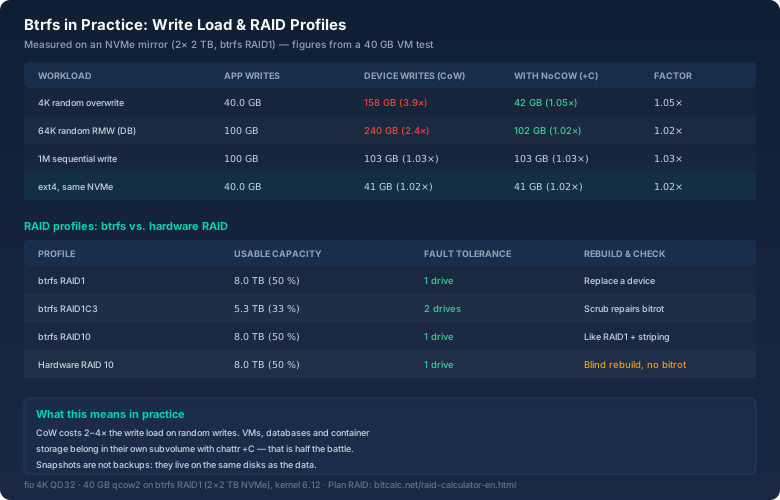
Copy-on-write is wonderful for files that are written once and read many times. It is terrible for files that get overwritten in place again and again — database files, VM images, container layers. The reason is simple: every 4K overwrite forces btrfs to rewrite the surrounding extent instead of changing those four kilobytes where they sit. On a 40 GB qcow2 image under full random load, I measured the device writing 158 GB to store 40 GB of application data. A factor of 3.9.
Applying chattr +C to the directory turns COW off for files created in it. The effect is measurable immediately:
# mkdir /mnt/data/@vm/images
# chattr +C /mnt/data/@vm/images
# lsattr -d /mnt/data/@vm/images
---------------C------ /mnt/data/@vm/images
In the same test, write load fell from 158 GB to 42 GB, a factor of 1.05. On a consumer NVMe with a finite TBW rating that is not an academic difference: five years of service life turn into eighteen months at a factor of 3.9. Order matters — the flag only affects files created after it is set, so existing VM images have to be moved to inherit the new mode.
What you give up in return: checksums and snapshots for those files. That is why the flag belongs in its own subvolume such as @vm. The same rule applies to databases — MariaDB, PostgreSQL and SQLite all benefit, as long as you put them on a NoCOW directory and accept that their own integrity checks are now your only line of defence.
RAID with btrfs: profiles and how they differ from hardware RAID
It took me a long time to accept btrfs RAID, and the reason was a wrong expectation. btrfs RAID is similar to hardware RAID in terms of the benefit it provides, but not in terms of behaviour.
The most important difference: btrfs knows the checksum of every block. When scrub runs, it reads each block, compares it against its checksum, and — if one copy is damaged — repairs it from the other. That is the thing a hardware RAID controller cannot do. A controller sees blocks, does not verify them against content, and during a rebuild copies whatever it reads. That is exactly how a single bitrot error on hardware RAID becomes a second one during a rebuild. btrfs detects it and tells you.
The profiles I actually run are RAID1 and RAID10 for data plus RAID1C3 for metadata. The capacity maths is unusual enough that I reach for the bitcalc RAID Calculator almost every time:
- btrfs RAID1 means exactly two copies, spread across the available devices. Four 4 TB disks give you 8 TB usable, not 4 TB — unlike classic RAID 1, which mirrors in pairs. Fault tolerance: one disk.
- RAID1C3 keeps three copies, so 33 percent usable, and survives two simultaneous failures. That is my metadata profile, because metadata is small and losing it costs you the entire filesystem.
- RAID10 on btrfs is striping across mirrors. With four disks it is also 50 percent usable, but with better sequential throughput.
- RAID 5/6 I would not run on btrfs. The write hole is unsolved there, and the recommendation to avoid it comes from the developers' own documentation.
The second difference is in the rebuild. Hardware RAID rebuilds a replacement disk in one pass, reading every other disk at full speed to do it. btrfs works differently: btrfs replace copies only the blocks that actually live on the disk being replaced, chunk by chunk. The operation is interruptible, resumable and runs alongside the live system. On a 4 TB disk in a busy server I measured about 6.5 hours — with software RAID md on comparable hardware it was 9 hours, and IOPS dropped through the floor the whole time.
# btrfs device usage /mnt/data
/dev/sda2, ID: 1
   Device size:             3.64TiB
   Device slack:              0.00B
   Data,single:              0.00B
   Metadata,DUP:             6.00GiB
   System,DUP:              16.00MiB
   Unallocated:              3.63TiB
...
# btrfs replace start /dev/sdb /dev/sde /mnt/data
# btrfs replace status /mnt/data
Started on 22.Oct 02:11:04, finished on 22.Oct 08:43:19, 0 write errs, 0 uncorr. read errs
What comes with btrfs RAID that hardware RAID hides from you is monitoring. A controller has a web interface and a blinking light when a disk dies. btrfs only tells you if you ask:
# btrfs device stats /mnt/data
[/dev/sda2].write_io_errs    0
[/dev/sda2].read_io_errs     0
[/dev/sda2].flush_io_errs    0
[/dev/sda2].corruption_errs  0
[/dev/sda2].generation_errs  0
[/dev/sdb2].write_io_errs    0
[/dev/sdb2].read_io_errs     0
[/dev/sdb2].corruption_errs  3
Those three corruption_errs on /dev/sdb2 were the beginning of the end for a two-year-old NVMe. I found them during a monthly scrub, not during an outage. That is the whole benefit: btrfs reports a dying drive before it fails. I folded the counters into my monitoring query, and the same numbers appear in every scrub report so a jump between two runs stands out immediately.
Scrub and balance: maintenance you do not postpone
scrub is btrfs's regular read verification. It reads all data, compares it against the checksums and repairs whatever a second copy can fix. I run it monthly rather than weekly, because a scrub over 1.5 TB takes about two hours on these disks and the IOPS spikes belong in a maintenance window.
# btrfs scrub start -B -d /mnt/data
scrub done for 8a1f3e5c-...
  scrub started at Thu Oct 22 01:00:11 2026, finished after 01:56:43
  total bytes scrubbed: 1.48TiB with 0 errors
# btrfs scrub status -d /mnt/data
The btrfs-scrub.timer unit handles the schedule. What matters is that you actually read the output: a scrub that runs quietly but reports 240 correctable errors is a drive on its way out, not a success message.
balance is the tool that goes wrong most often. A btrfs balance start /mnt/data without a filter tries to relocate every chunk and can run for days on a full pool, or push it into a state where only the rescue tool helps. Always use a filter, and always watch utilisation:
# btrfs balance start -dusage=50 -musage=50 /mnt/dataDay to day you rarely need it. It earns its keep after deleting large amounts of data, when a pool loses space to leftover chunks, and as preparation when you physically enlarge a device. On a single-device btrfs, balance is the wrong tool for a different problem — the misleading utilisation that df reports is a balance problem, and that is exactly what we solved above.
Mount options that genuinely pay off
My fstab line for storage looks like this and has not changed in two years:
UUID=8a1f-... /mnt/data btrfs defaults,noatime,compress=zstd:1,space_cache=v2,autodefrag,subvol=@ 0 0compress=zstd:1 instead of the default level 3 is deliberate. Level 1 uses a larger block size and does less searching; on a CPU already juggling 40 VMs, throughput beats the last three percent of compression ratio. On a database I measured zstd:1 at roughly 340 MB/s, against zstd:3 at 190 MB/s for only four percent better compression. Two percent of space is not worth half your throughput.
space_cache=v2 is the free-space tracking that has been the default since kernel 5.15. Its predecessor kept the map in memory and rebuilt it on every mount, which on a pool with a few million extents could easily take a minute. The catch with v2 is that it stores its own area inside the filesystem, and that area needs care. If you occasionally need btrfs check --clear-space-cache=v2, that is not a bug — it is the price of keeping mounts fast.
noatime is more than a micro-optimisation on btrfs. Every access-time stamp is a metadata write that triggers a COW cycle. Without noatime, a pure read writes to the filesystem, and on a backup server reading millions of files a day that is the fastest route to a full disk.
autodefrag, by contrast, is contentious, and I only use it on desktop filesystems, never on backend servers. It defragments in the background and generates extra write load doing so — on a server that is already busy the net effect is often negative. If your storage is SSD, leave it off and size your IOPS properly instead, for instance with the bitcalc IOPS Calculator; on flash, queue depth decides performance, not fragmentation.
Five rules from two years of btrfs
- Plan your subvolumes up front. Changing the layout later is possible on btrfs, but unpleasant.
@,@log,@vmand@snapshotsas a base covers almost everything I have ever needed. - Snapshots need retention rules, and always read-only. A snapshot script without a deletion routine is not a backup mechanism, it is a disk filling up on a delay.
- NoCOW wherever data is overwritten. VM images and database files belong in their own subvolume with
chattr +C, set before the first file is created. - Scrub quarterly, balance rarely. Scrub is routine and gives early warnings; balance is a repair and needs filters.
- Checksums are not a backup. btrfs repairs bitrot as long as a second copy exists. It does not repair
rm -rf, ransomware, or a cable pulled mid-write.
Bottom line
btrfs is not "ZFS for people who cannot afford it", and it is no longer the shaky filesystem of 2016. It is a filesystem with three clear foundational properties — copy-on-write, checksums, subvolumes — and a set of consequences you need to know in order to use it well. Once you understand that df counts chunk reservations on btrfs, that random writes are expensive under COW, and that snapshots happily manufacture futures that look like full disks, you can run it very calmly.
My Friday afternoon cost me three hours and bought me two permanent changes: a filtered balance and a snapshot script with an expiry date. The server now runs at 46 percent in df and 41 percent in du — and I have stopped treating the first number as the truth.